
Getting WP Rocket settings right can make a massive difference to your site’s performance. But with so many options, it’s easy to enable something that actually hurts your speed — or worse, breaks your site.
After optimizing 5000+ WordPress sites, we’ve dialed in the exact the caching plugin configuration that delivers the best balance of speed, reliability, and compatibility.
In this guide, we’ll walk you through every single tab and setting — and explain exactly what to turn on, what to leave off, and why. You’ll see throughout the video below we talk about “reliability beats speed”. We NEVER want to sacrifice site reliability and uptime for a small gain in speed as the only thing that’s worse than a slow site, is a site that is down!
Watch the full video walkthrough below, or keep reading for our recommended settings:
Video transcript: WP Rocket - Best Settings & Configuration For Site Speed
0:00Introduction to WP Rocket Settings
Brendan from WP Alpha here. I'm back to talk about WP Rocket settings. WP Rocket is one of two plugins we recommend, at wprocketplugin.com. The other one we recommend is FlyingPress, at flyingpress.net. I talked about those in a different video about the best WordPress caching plugins, so check that out if you want to know the details. Broadly speaking, we find WP Rocket to be a more reliable and stable plugin, whereas FlyingPress can squeeze a little bit more performance out of the site, but it might sacrifice reliability for some more complex sites. FlyingPress is better for users who are more technical.
I'm going to try and keep this video shortish so you can follow along. I've got WP Rocket open here on our website. It's the plugin we use, and we're on version 3.20.2 or 3.20.4. I'm just going to run through the different sections and explain what we're doing here.
1:10CDN and Monitoring Tools
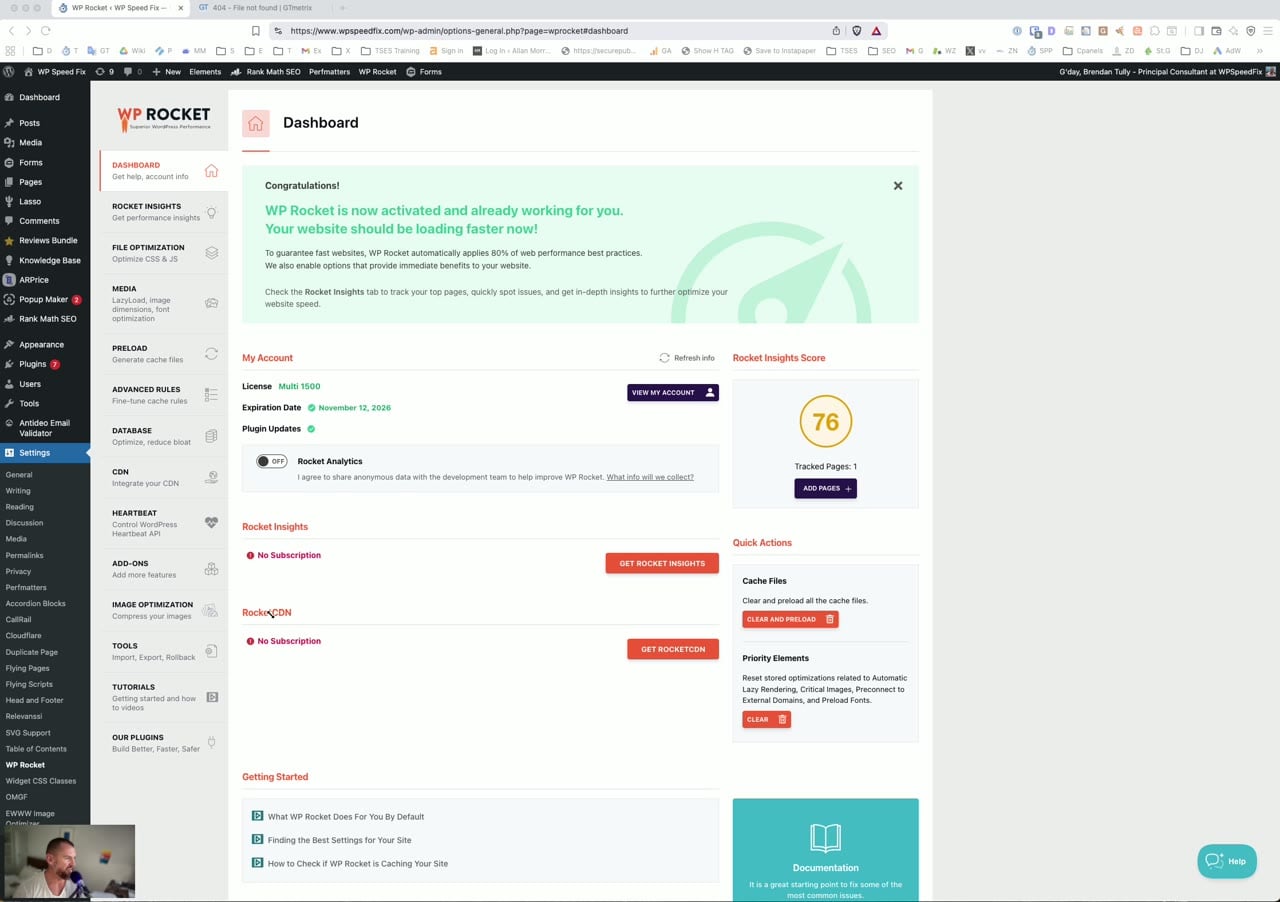
A few things. This is a paid plugin. The single site license is 59 US bucks, which is pretty cheap in terms of what it does for performance. We don't use the Rocket CDN. We use Cloudflare, and you should use Cloudflare too. You should not use two CDNs together. If you already have Cloudflare, do not get the Rocket CDN. When you combine two CDNs, you are slowing things down, because one CDN has to send the traffic to the next CDN, which then sends it to the website. That's a bad idea, so avoid two CDNs. You'd be better off on the $25 or even the free Cloudflare plan, or the $5 a month APO subscription, or the $25 a month, I think it's the Business plan, which has image optimization, firewall and a whole bunch of other stuff. See our guide on the benefits of Cloudflare for WordPress for more.
We don't use the CDN, and we don't use Rocket Insights either. Let's talk about this for a minute. This uses GTmetrix for performance monitoring. GTmetrix is a lab or synthetic testing tool. That's lab data, not field data. We care about Core Web Vitals, and Core Web Vitals is the name of the game. That is Google's data set on your site speed that it has pulled from visitors hitting your site using a Chrome-based browser. So you can score like this: our homepage is 76. We have a whole bunch of heavy stuff on there, like a very heavy lead form. What we care about is passing Core Web Vitals, and we do on the homepage. That's it. We don't need a 100 score in a test, we don't need a 100 score in PageSpeed Insights. What we care about is Core Web Vitals: are users getting a fast user experience or not?
So we don't really use this. It's only set up because we were setting up to test it, but we have this turned off, and you probably don't need it. You should be looking at Core Web Vitals. You should be looking at CrUX Vis, at cruxvis.withgoogle.com. This will give you a full data set of how the site is performing, with week-to-week updates. So that's what you should be using for monitoring performance, that or Google Search Console. Enough about that, let's move on to the next bit.
3:05Why We Never Use Minify or Combine JavaScript
CSS and JavaScript. I talked about this in the best WordPress caching plugin videos: you should not use minify CSS or JavaScript. What minify does is strip out line breaks, spaces and comments from these files to make them a tiny bit smaller, but it really does nothing in the practical, real world. Your web server already has compression. It has gzip compression and it has Brotli compression, which are both very good, and they'll squeeze the size of the file significantly more than minify ever could.
The problem with minify is that what it's doing is renaming the JavaScript files and renaming the CSS files. What happens then is that the browser cannot cache them. Every time you clear the cache here, with WP Rocket's clear cache, or you update a page, the file names of the CSS files and JavaScript files change. That means anything in a cache, so the Cloudflare cache or the visitor's browser cache, is now invalid. It's not a file that works anymore. So it actually slows down the site for repeat visitors. It can also break the site layout in some cases, depending on what sort of caching setup you have, particularly if you're using Cloudflare's edge caching. So don't use it. It doesn't do anything, and it actually makes performance worse overall.
Avoid using these minify settings, and avoid using combine JavaScript. This is the same thing, and you have to have minify on to do this. It looks like I can't even turn it on anyway. Oh, because I haven't saved the settings. This does the same thing. It takes all the JavaScript files and puts them into one. It gives it a unique file name, and every time you clear the cache it renames that file. So again, that's bad for caching and it's bad for repeat visitors. JavaScript will actually go faster, in most cases, if the individual files are not combined. Combining files is a technique from 10 plus years ago, before the HTTP/2 protocol was around. I won't get into that too specifically, but these settings, minify CSS, minify JavaScript and combine JavaScript, will slow things down, and we will immediately turn them off when we see client sites with them. So don't use them.
5:26Optimize CSS Delivery, Deferred JavaScript and Delay JavaScript
Next, optimize CSS delivery. We're using the GeneratePress theme, and we're also using some other plugins for optimization, so we don't want to optimize CSS delivery in this case. The CSS is very good in the GeneratePress theme as is. You don't ever want to duplicate optimizations. We're using GeneratePress to deal with the CSS, and we are not dealing with it here in the plugin, because if you have multiple things doing the same speed optimization, they overlap and can cause conflicts or problems. So we're avoiding this. Depending on what theme you have, you may want to turn this on or off, so just be mindful with this setting. You don't necessarily want to use it if you're on a fast, modern theme. We have GeneratePress, so we don't use it.
These two here you want to use. Loading JavaScript deferred: basically what this does is stop the JavaScript firing until the page has loaded, essentially. For most sites this works fine, but if you have particular things here that are breaking or have problems, you want to have exclusions for those JavaScript files. Our website relies heavily on jQuery, so we've excluded jQuery and some of these other bits and pieces from this rule because it was breaking things. You need to be mindful of this. When JavaScript is too heavily optimized, things like menus or accordions will break. Things will break in strange ways that might not necessarily be noticeable.
One easy way to figure out if things are breaking is to open the developer console. Open a browser, right click, go to Inspect, and open the console. If you see a whole bunch of red stuff in here, something has gone wrong with the JavaScript optimization. It will usually give you the file name. You can see here it's given you a bunch of file names, and usually by giving you the file name you can add an exclusion into this list. If you have a really complex site, like a WooCommerce site, or a site with a lot of JavaScript, that could be a problem, so just keep that in mind. This is a bit more technical and can break things.
This one here is even more risky: delaying the JavaScript execution. What this does is stop the JavaScript on the site firing until the user interacts with the site. That can make the site look really, really good in a speed test, because half the site isn't even loading when you initially load. The problem with that is it breaks the site render. In some cases, like I said, half the site doesn't even load without this JavaScript. It doesn't render. So that's a problem, because we look great in a speed test, and it's a really easy hack to get a 100 score on Google PageSpeed Insights. A lot of the companies that are guaranteeing you a 100 score, that's what they're doing. They're basically not loading the entire website initially. It's a great hack to get that 100 score, but in real life it will probably negatively impact the Core Web Vitals metrics. It also might break your analytics tracking too, because that code is firing late.
We've actually turned it off on our site. We did have it on for a while, but we have a number of tools like CallRail and the Facebook pixel, things like that, and it was breaking, so we stopped using it. That's because our site's a little bit more complex in terms of the tracking. If you want to use this, use it with caution. What we'd say is turn it on, use the safe mode, and exclude everything from it, so there's just a handful of third party scripts that are being excluded. Even in our case, we don't want Google Analytics or Google Tag Manager to be paused, because it breaks tracking. It will make the site look better in a speed test with this stuff turned fully on and everything delayed, but we might break things. It might break the tracking, it might break the render, it might break things in strange ways. It's also an SEO problem, because if Google comes to the site and only half the site's loaded, then when it indexes it, it only sees half a site. You may actually end up with penalties because the site's not rendering properly. So use this one with caution. Using everything there by default will make the site faster, but it might also break it. I talked about in the last video, the WordPress caching plugins video, that our priority is always reliability over speed. There's no point sacrificing reliability for a small speed gain if the site's not working for half the people visiting it.
9:45Media and Image Optimization
Media stuff. Lazy loading: we use a different plugin for lazy loading. We use Perfmatters for lazy loading, and you see here we have it. The Perfmatters lazy loading is a bit better than WP Rocket. I've talked again about how you don't want to overlap the optimization, so we had that optimization being done in Perfmatters. If you don't have any lazy loading, then you can enable that. Lazy loading basically doesn't load the images until you scroll down to that part of the page. You can also turn it on for YouTube videos and iframes and things like that. Just be careful, because sometimes Elementor and some of the bigger page builders have a form of lazy loading built in, so you don't want to have conflicts there.
Then these exclusions we have here: you want to exclude anything that's above the fold, images above the fold, from lazy loading, like logos. We had excluded these icons. We actually moved all that to Perfmatters, because Perfmatters does this automatically. It automatically excludes things that are above the fold from lazy loading. We don't want to add any delays to anything that's above the fold. In this viewable area, we don't want to delay the loading, because it actually makes things slower. That's why those are exclusions there. But we're actually not using this stuff anyway, because we don't have the image lazy loading on.
This one here, adding image dimensions, can help fix layout shift, so we have it on by default. Then there are the preload fonts and self-host Google Fonts settings. We're using a different plugin for these, but these probably should be turned on by default for you if you don't have any other optimization plugins. For self-host Google Fonts, we'd actually use the fonts optimization in Cloudflare instead. It's a better optimization than this one. So those are those settings.
11:41Cache Preloading and Link Preloading
Preload. This is an important one. There are two kinds of preloads here. One is where the plugins, WP Rocket and all caching plugins, have this: they'll go through the sitemap and automatically build the pages. We talked about in the last video that what a caching plugin does is build all the pages in advance, before the user gets to the site. It builds the pages and saves them on the server so they're ready to load when the user hits the site. That's what caching is, that is a page cache. Ideally you want those pages built in advance, not when the first user hits them. That's what preloading is, so you want that on by default. You might want to exclude pages here if you don't want them pre-built, like cart and checkout pages, anything that's a dynamic page. WP Rocket will pull those pages from the sitemap, so if there's something in the sitemap that you want to exclude from caching, then that would be where it goes.
Link preloading is something called just-in-time preloading, and this site here explains what it does perfectly, instant.page. Basically there is a delay between hovering over something and clicking on it. You can see here that was nearly a 1 second delay. In that delay you can start to load the page. What just-in-time preloading does, or what WP Rocket is calling link preloading, is turn on this feature where, if I hover over this, the browser has already started to load it before I click on it. You can see there was a 3 second delay, and in those 3 seconds the page can actually load. So that's what that is.
We actually use this plugin, Flying Pages. It's from the same guys as FlyingPress, and it does this just-in-time preloading, but it also loads all the links in this area. It just runs through and starts loading them in the background when I hit this page, so it's a more advanced version of this. But if you just have WP Rocket, turn this on. We've got it off because we're doing that again in another plugin.
13:37Advanced Rules and Database Cleanup
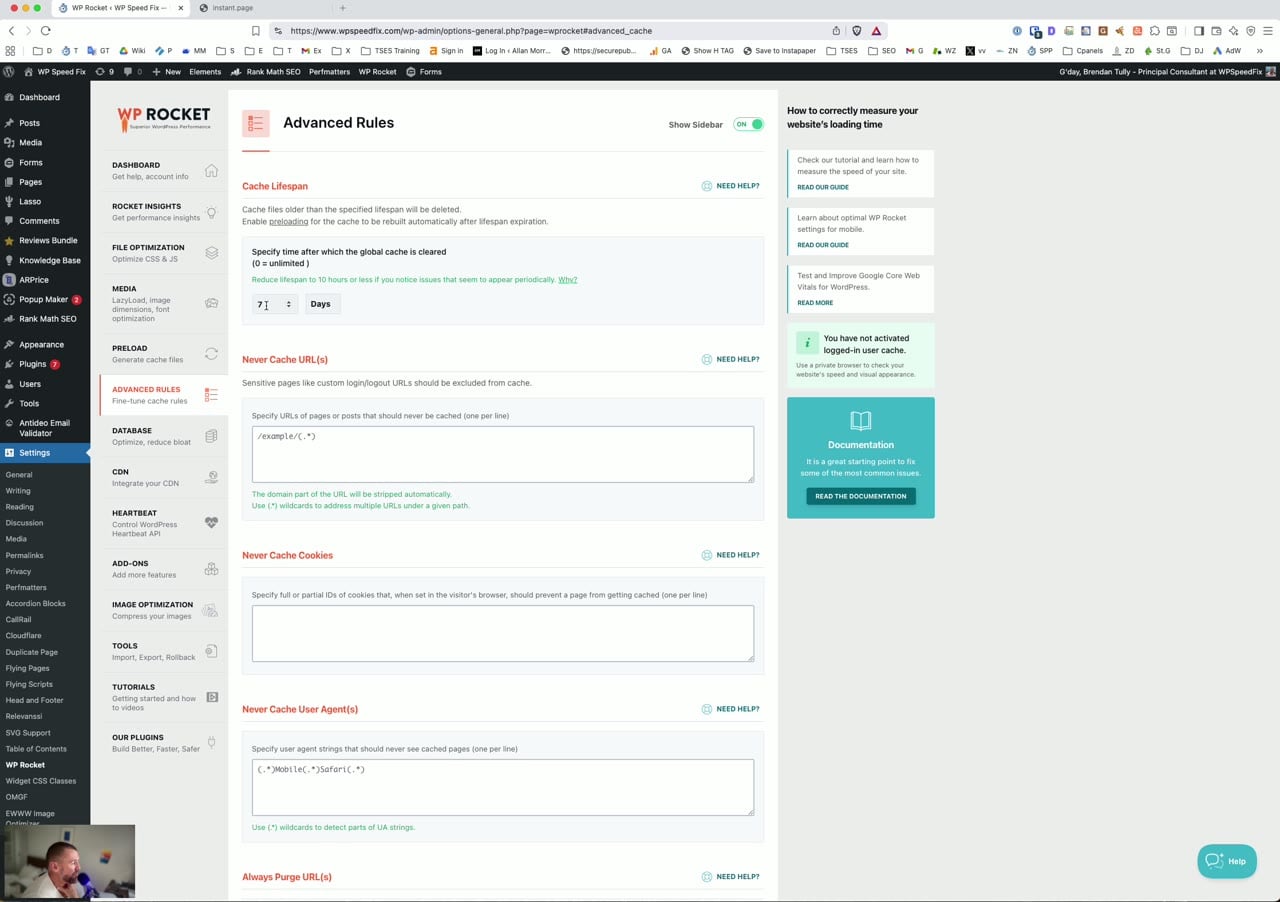
Advanced rules. This is where you can exclude things from caching. If there are pages you don't want to cache, or cookies you don't want to cache, this is more of an advanced section. Our cache lifespan is set for 7 days. That's a good balance between rebuilding the pages or not. If you have a bigger site, you might want to set this higher or lower depending on how often pages are changing, but 7 days is good for us. We would never set it to unlimited. The reason being, if something goes wrong with the cache, that page will be broken forever until the full page cache is cleared. With 7 days, it's clearing out every seven days. So even if there was a page with an issue with a layout or something like that, or bad cache data, every seven days it's being flushed out.
This one is advanced, so in the scope of this video it's probably not worth getting into database stuff. We generally wouldn't touch any of this stuff. We would schedule an automatic cleanup, maybe for a WooCommerce site that has a lot of transients and stuff, but you can use this as a one-shot kind of cleanup. If you have a really old WooCommerce site, you might have a million transients, and cleaning that will speed up the database, but generally we don't touch this. We don't care about revisions in the database. We don't care about a lot of this stuff, so for us it's not a problem. If you're running out of storage space, a thousand revisions is a lot, and you might want to clear those out. I wouldn't do it by default. It would be okay if we need to do a cleanup here, like spam comments, okay, maybe clean those out. But for us, we don't need to do any of this stuff, because it's not a dynamic site like, say, a WooCommerce site.
15:36Add-Ons, Heartbeat, Image Plugins and Final Tips
CDN we talked about: we don't use Rocket CDN, Cloudflare is better, so we ignore that completely. There is a Cloudflare add-on here somewhere, there we go. But we're using the Cloudflare plugin directly instead of this. If you're not using the Cloudflare plugin, then enable this and add the API key. The other thing in the add-on section is the user cache for logged in users. If you have a WooCommerce site or LMS or something where users are logging in, you want to turn that on. We don't have that, so we don't have it turned on, but that will cache logged in user sessions. If you have a WooCommerce site, you probably want to turn that one on.
Heartbeat: we never use the heartbeat. Heartbeat is a nonsense optimization. I don't know why it still has this feature, and I don't know why people talk about it online. We've optimized 5,000 sites, well, more than 5,000 sites, and we've never had an issue about heartbeat. It's just kind of a nonsense optimization, similar to minify. It's just there for legacy reasons. We would never use this, and in some cases this will break the back end. So again, reliability over speed.
Image optimization: we don't use Imagify, we use EWWW Image Optimizer. You can see it there. One of the reasons why we use that is because it can use the hosting itself to do the image compression, so it's much faster, and it means you can also use it for free. Imagify is decent. Like all optimization plugins, they all use the same compression algorithms, so it just depends what you like using. Before we used EWWW, we used ShortPixel, and we like that as well. They're all much the same. There's no real difference because they all use the same underlying algorithms for compression. We like EWWW because it works faster and it's cheaper, because it can use hosting performance instead of the API. That's the only reason why we have it.
Tools: we don't use any of this stuff. We rarely use this unless it's for a special reason. We rarely have to roll back versions, so there's really nothing to do there. That's pretty much it. There's a whole bunch of stuff there about help and things like that, but those are really the WP Rocket settings we use. It's pretty simple. Like I said, the extra plugins we use are Perfmatters, a Cloudflare plugin, which is in this list, there it is, and Flying Pages. We also use the Flying Scripts plugin for some delaying JavaScript stuff, only a little bit though. Then the EWWW optimizer there for images.
So that's it. If you have any questions, post in the comments below. Otherwise, if you need help with your site speed, check out our website, wpspeedfix.com. You can request a free site audit there and see how we can help. There are also some free tools here, a free SEO audit, a free Core Web Vitals report and a free WordPress speed test. They all take 60 to 90 seconds, completely free, no opt-in required. So I'll leave you to it. Again, if you have any questions, post in the comments below and we'll come back to you. Cheers.
Table of Contents
Our Approach To WP Rocket Settings
Before we dive into the settings, it’s important to understand our philosophy. We always prioritize reliability over raw speed scores. There’s no point shaving 200ms off your load time if it introduces a JavaScript error that breaks your contact form or menu.
Every setting recommendation below has been tested across thousands of sites running different themes, page builders, and plugin combinations. These are the settings that work consistently — not just on a clean demo install.
We’ve provided screenshots of the various sections where appropriate, click to enlarge the images.
ALSO NOTE – in some cases there are WP Rocket features that are hidden or note accessible via the web interface and require what they call “helper plugins”. There are a ton of various helper plugins to do all sorts of obscure things or change the default behaviour. Messing with these is really a developer level task. You can see the full list of stable and experimental helper plugins on Github here https://github.com/wp-media/wp-rocket-helpers/tree/master/_wp-rocket-helper-plugin
Dashboard
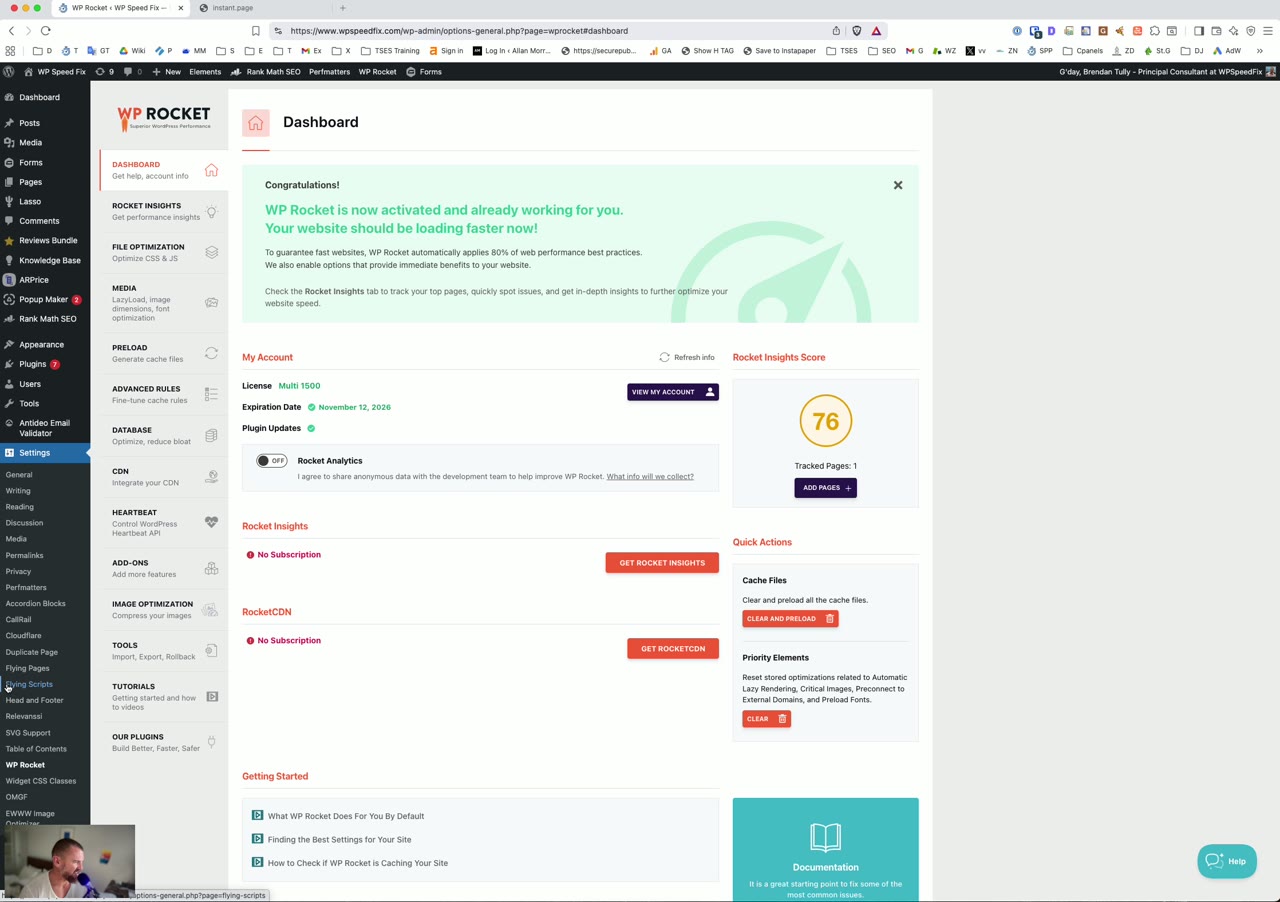
The it Dashboard is your starting point. There’s not much to configure here — it mainly shows your license status, quick actions, and account info. Make sure your license is active and you’re running the latest version of the plugin. WP Rocket frequently releases updates that improve compatibility and performance, so staying current is important.
Rocket Insights
Rocket Insights is a relatively new addition. It provides basic analytics and suggestions for your site. While the data here can be useful for a general overview, we wouldn’t recommend making changes based solely on these suggestions without testing. Use it as a reference point, but trust your own testing and real-world performance data over automated recommendations.
Cache
The Cache tab controls the plugin’s core page caching functionality. Here are our recommended settings:
Mobile Cache
Enable caching for mobile devices: ON — This is essential. The majority of web traffic is now mobile, and you need to serve cached pages to those visitors.
Separate cache files for mobile devices: Only enable this if your theme serves genuinely different HTML to mobile users (not just responsive CSS). Most modern themes are responsive and don’t need this. Enabling it unnecessarily doubles your cache size.
Cache Lifespan
We typically leave this at the default 10 hours. If your site content doesn’t change frequently, you can increase this. For very active sites like news sites, you might want to lower it. this plugin automatically clears the cache when you update a post or page, so the lifespan mainly affects pages that haven’t been manually updated.
File Optimization
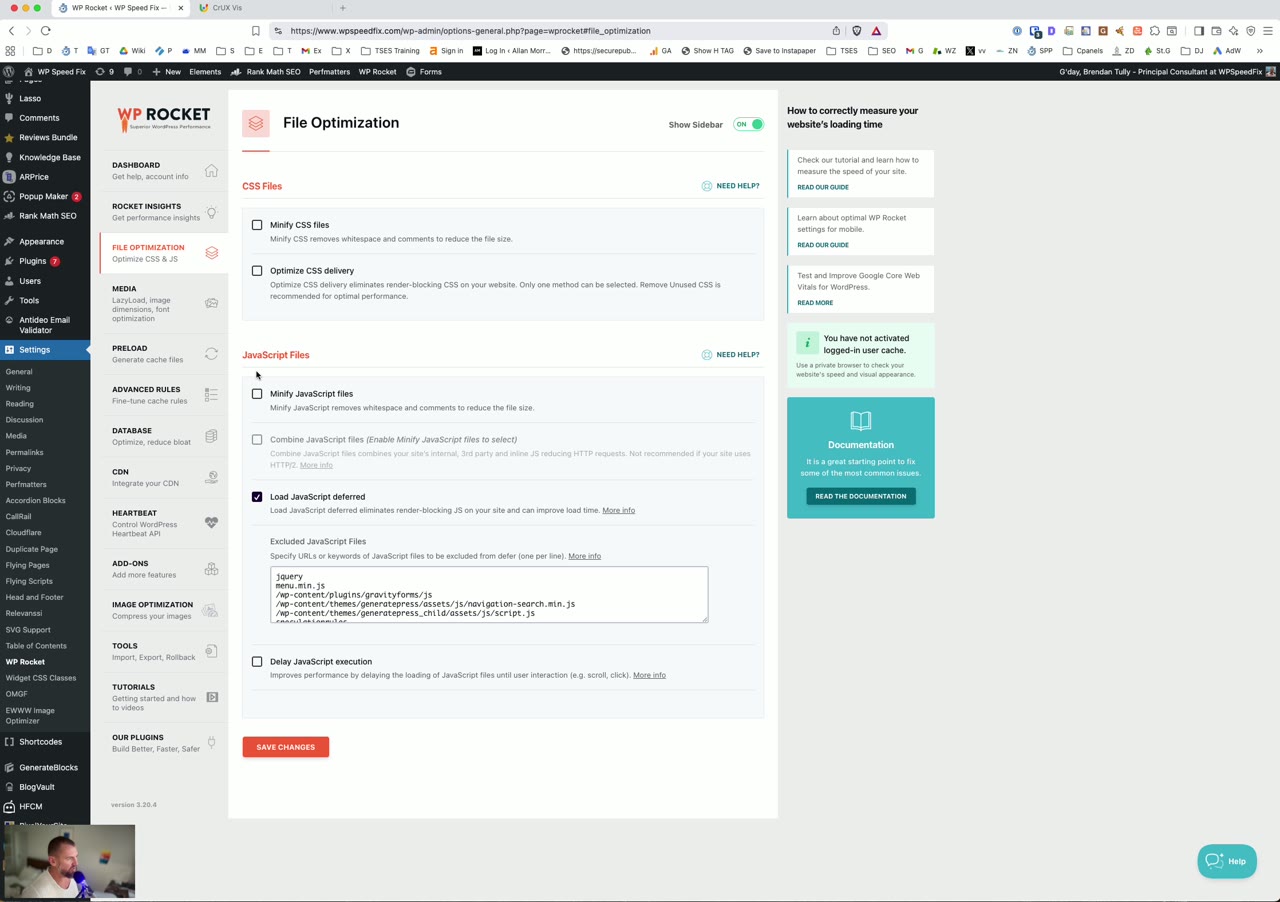
This is where most people get into trouble. File Optimization handles your CSS and JavaScript files, and aggressive settings here are the #1 cause of site-breaking issues with WP Rocket. Here’s what we recommend:
CSS Files
Minify CSS: OFF — Yes, you read that right. We leave CSS minification off. The performance gains from minifying CSS are minimal (we’re talking fractions of a kilobyte in most cases), and it can cause display issues with certain themes. The risk-to-reward ratio simply isn’t worth it.
Combine CSS: OFF — Combining CSS files is an outdated optimization technique from the HTTP/1.1 era. With HTTP/2 (which virtually every modern host supports), combining files actually hurts performance because it prevents the browser from caching individual files efficiently.
Optimize CSS Delivery: ON — This is the one CSS setting you want enabled. It generates critical CSS for your pages, which allows the browser to render above-the-fold content quickly while the full stylesheets load in the background. This directly improves your Largest Contentful Paint (LCP) and eliminates render-blocking CSS warnings in PageSpeed Insights.
JavaScript Files
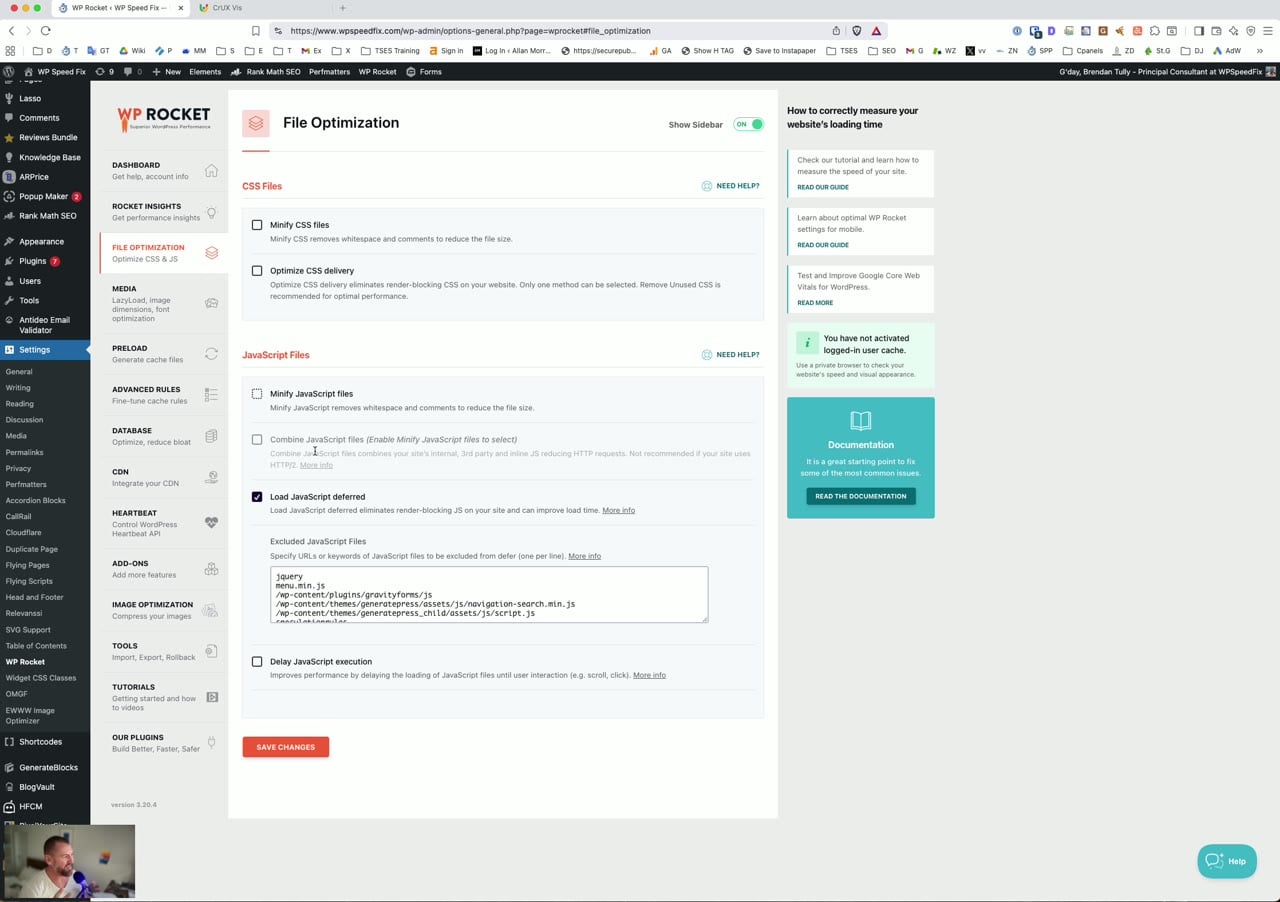
Minify JavaScript: OFF — Same reasoning as CSS. The savings are negligible and the risk of breaking functionality is real. Most well-coded plugins already ship minified JS files.
Combine JavaScript: OFF — Again, an outdated technique that doesn’t help with HTTP/2 and can cause execution order issues that break your site.
Load JavaScript Deferred: ON — This is critical for performance. Deferred loading tells the browser to download JS files in parallel with HTML parsing but wait to execute them until the page is fully parsed. This eliminates render-blocking JavaScript and significantly improves your Time to Interactive.
Delay JavaScript Execution
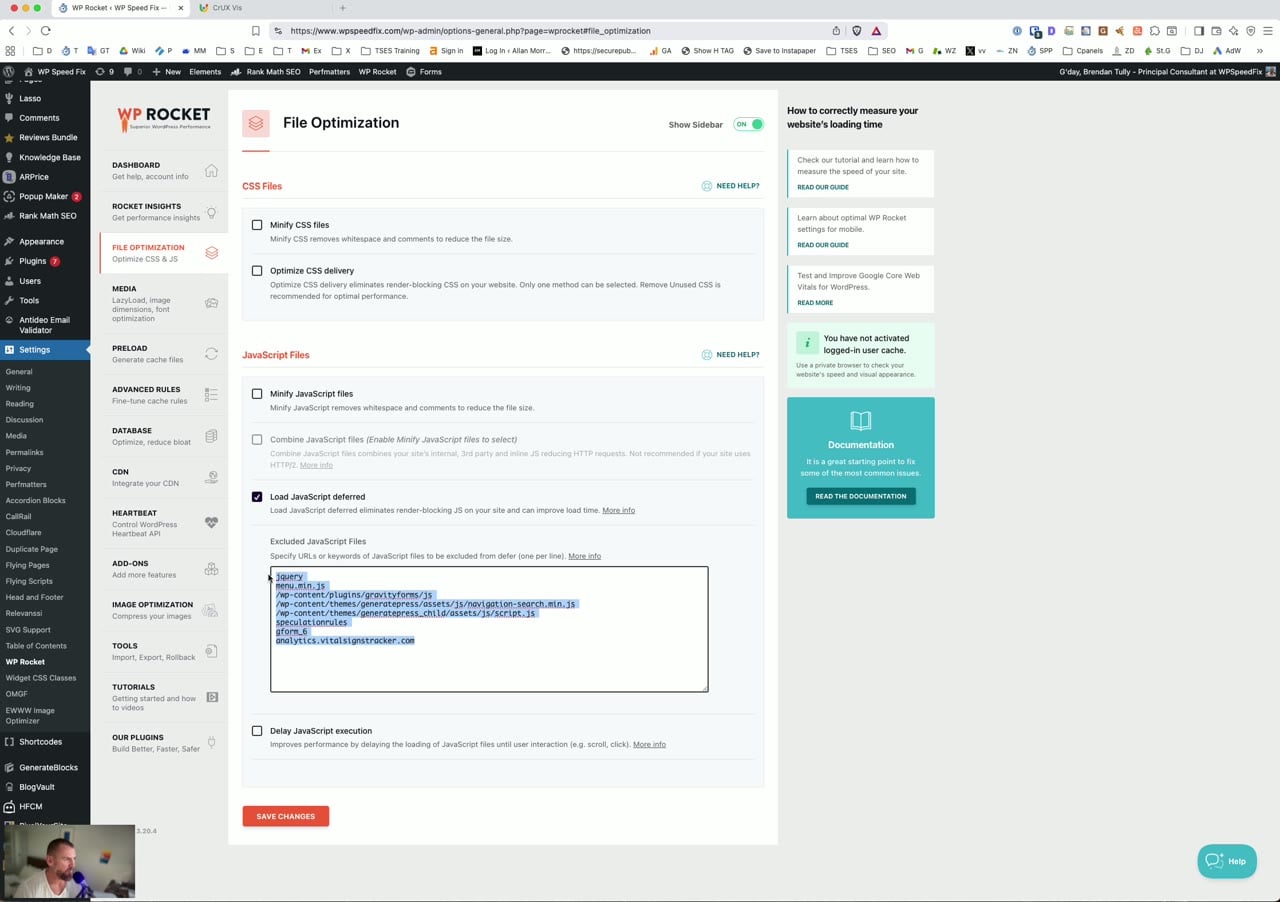
Delay JavaScript Execution: ON — This is one of WP Rocket‘s most powerful features. It delays the loading of JavaScript files until there’s user interaction (mouse movement, scroll, click, or keypress). This dramatically improves your initial page load metrics because scripts like analytics, chat widgets, and social media embeds don’t load until the user actually starts engaging with the page.
However, this is also the setting most likely to cause issues. Some scripts need to run immediately for the site to function properly. That’s where exclusions come in.
Delay JS Exclusions
You’ll almost certainly need to exclude some scripts from delayed execution. the plugin has a helpful One-click Exclusions section that lets you easily exclude common plugins. Based on our experience, you should exclude all themes and plugins from Delay JS for maximum compatibility.
Check the One-click Exclusions section for any plugins you have installed and add them as needed. If something on your site breaks after enabling Delay JS, the culprit is almost always a script that needs to be excluded. As per the video, you can check under the Console tab in the browser developer tools for issues resulting from JS delay or defer settings.
Media
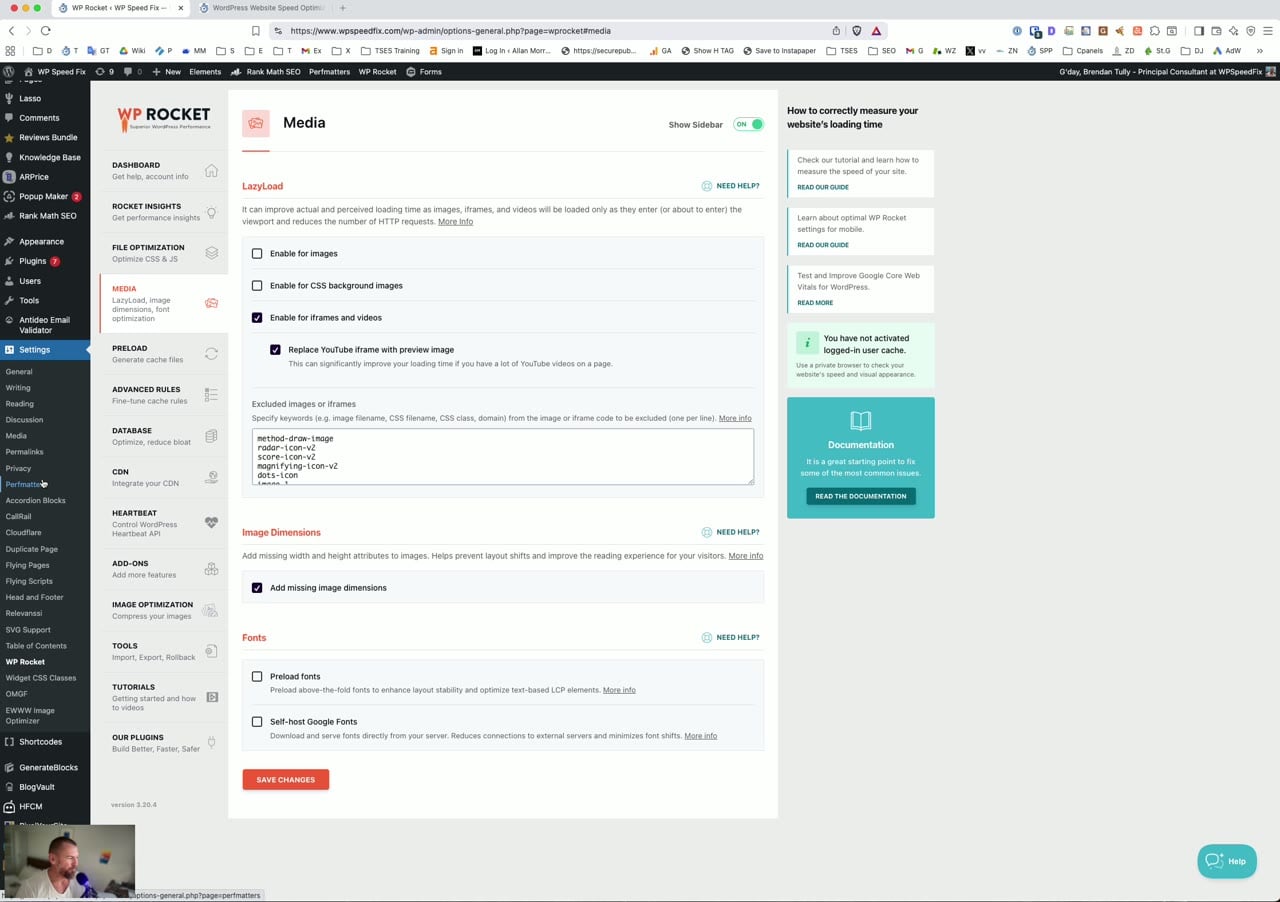
The Media tab handles lazy loading and image optimization. Here’s our setup:
LazyLoad
Enable for images: ON — as per the video, you don’t want to duplicate speed optimization functions. If you’re not using Lazy Loading in your theme or another plugin you want this on.
Enable for iframes and videos: ON — iFrame lazy loading (for YouTube embeds, Google Maps, etc.) benefits can be incredibly heavy so lazy loading will help here. It replaces heavy iframe embeds with a lightweight placeholder until the user scrolls to them.
Replace YouTube iframe with preview image: ON — This is a huge performance win. Instead of loading the entire YouTube player on page load (which pulls in a significant amount of data and is very heavy), the caching plugin shows a static preview thumbnail. The actual player only loads when the user clicks to play. On pages with embedded videos, this can save 0.5mb+ of initial page weight. This optimization is particularly useful on pages with multiple Youtube embeds.
Image Dimensions
Add Missing Image Dimensions: ON — This setting automatically adds width and height attributes to images that are missing them. This prevents Cumulative Layout Shift (CLS) — one of the Core Web Vitals — by telling the browser how much space to reserve for each image before it loads. There’s no downside to enabling this. Be careful with this as it may break rendering on some themes.
Preload Fonts
If your theme uses custom fonts (Google Fonts, Adobe Fonts, or self-hosted fonts), you can add them here for preloading. This tells the browser to start downloading font files earlier in the page load process, which can prevent the flash of unstyled text (FOUT) or flash of invisible text (FOIT) – you would have seen this where a site loads and then the text font changes. This is “FOUT”. You also ideally want to cache the fonts locally BUT if you’re using Cloudflare, it’s better to do that optimization in Cloudflare.
Preload
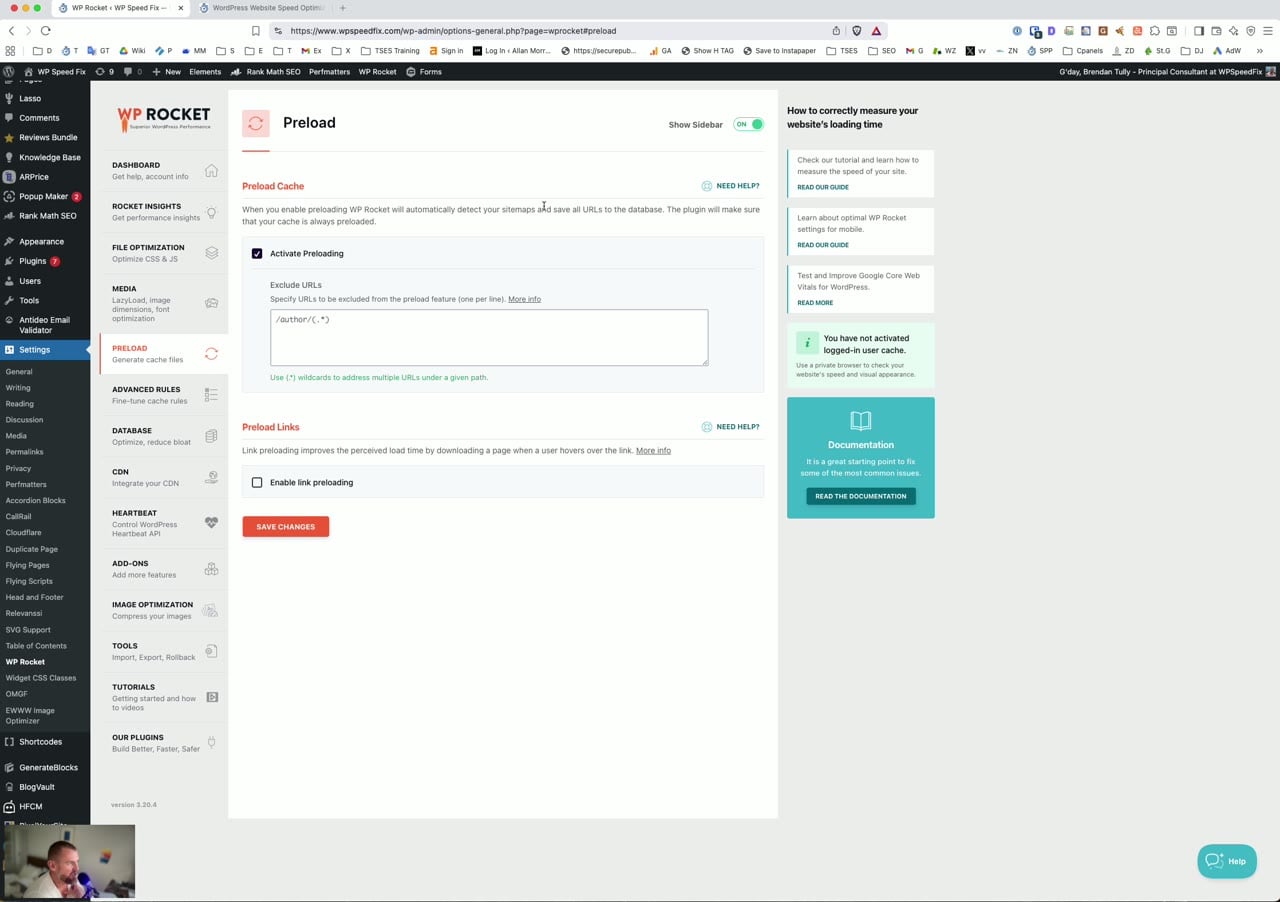
Preloading ensures that cached pages are ready before a visitor arrives. Here are our settings:
Activate Preloading: ON — When you clear your cache (or when a cache expires), WP Rocket will automatically crawl your site and rebuild the cache for all your pages. This means the first visitor after a cache clear doesn’t have to wait for an uncached page to load. It’s essential for maintaining consistently fast page loads.
Enable link preloading: ON — as per the video, this does something called Just In Time Preloading, you can see a demo of it at https://instant.page
You can also configure Preload specific URLs if you have pages outside your normal sitemap that you want to ensure are always cached.
In the Prefetch DNS Requests section, add any external domains your site connects to (like Google Fonts, analytics, CDN domains, etc.) to speed up DNS resolution for those resources BUT we prefer to use Preconnect instead of prefetch DNS as preconnect is an even better optimization.
Advanced Rules
The Advanced Rules tab lets you fine-tune what gets cached and what doesn’t. For most sites, the defaults work well. However, there are a few things to be aware of:
Never Cache URLs: Add any pages that should never be cached — like account pages, checkout pages, or any page with dynamic personalized content. WooCommerce and other e-commerce plugins typically handle this automatically, but it’s worth double-checking.
Never Cache Cookies: If your site sets specific cookies that indicate personalized content (like logged-in user cookies beyond the WordPress default), add them here.
Cache Query Strings: By default, URLs with query strings bypass the cache. If you have specific query parameters that don’t change the page content (like UTM tracking parameters), add them here so those URLs still get cached.
Database
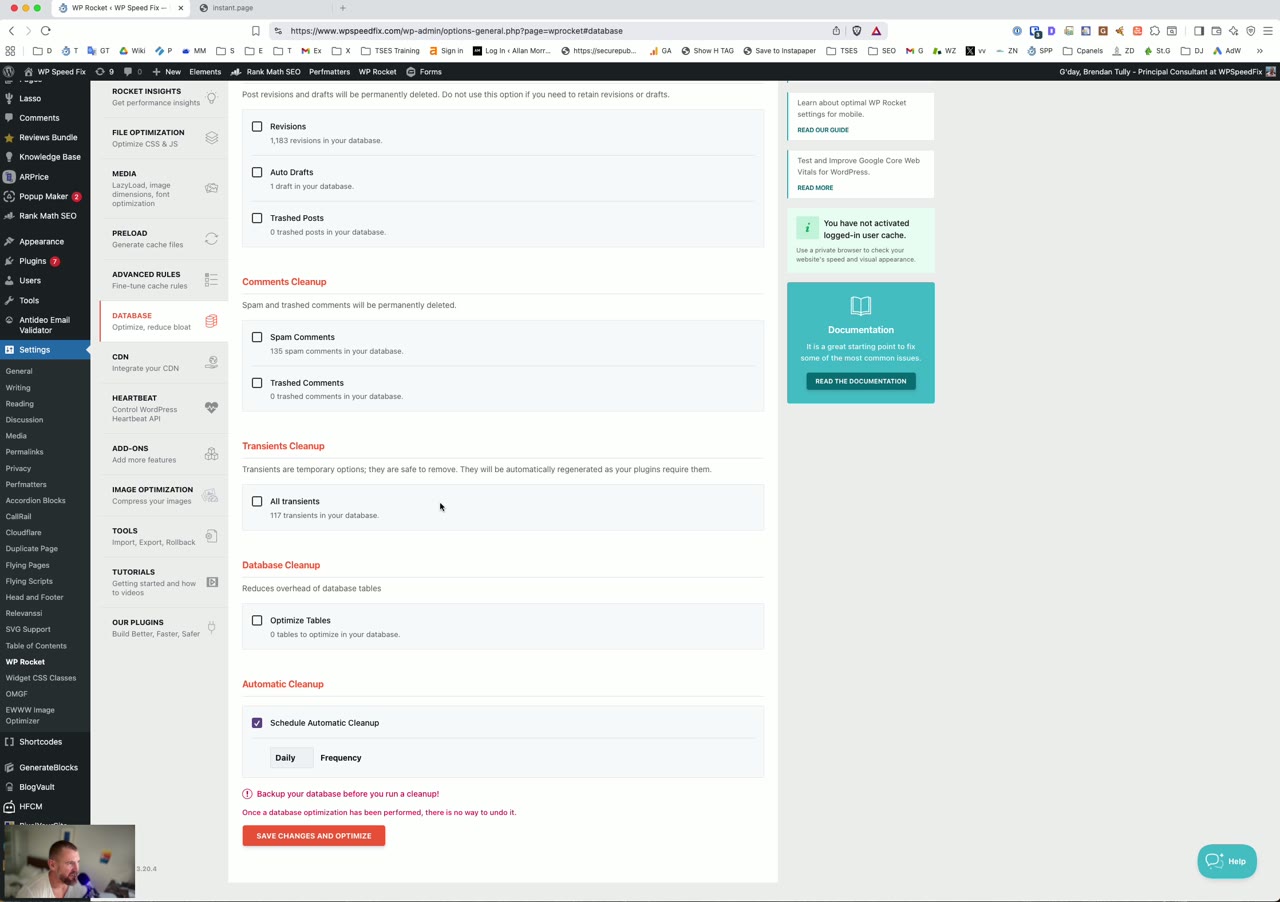
The Database tab provides tools for cleaning up your WordPress database. Our recommendation: use this sparingly and carefully.
You can safely clean up:
- Post Revisions — WordPress stores every revision of every post. On established sites, this can be thousands of database rows. Cleaning these up periodically is fine.
- Transients — Expired transients can be safely removed. These are temporary cached data from plugins.
- Spam and Trash Comments — No reason to keep these around.
We do not recommend enabling the automatic database cleanup schedule. It’s better to run these cleanups manually after taking a database backup. Also, always back up your database before running any cleanup operations.
CDN
Generally we recommend only using Cloudflare for CDN which means this section needs no configuration.
If you’re using Cloudflare, you should be using dedicated Cloudflare add-on (found in the Add-ons tab) instead of configuring the CDN tab. It provides deep integration with automatic cache purging when you update content.
Heartbeat
We’ve never seen performance issues due to the WordPress Heartbeat, leave this section disabled.
Our recommendations:
- Reduce or disable Heartbeat on the front-end — There’s rarely a need for the Heartbeat API on your public-facing pages.
- Reduce activity in the admin area — Setting it to run every 30 or 60 seconds instead of the default 15 seconds reduces server requests without meaningfully impacting the admin experience.
- Leave Post Editor Heartbeat alone — The auto-save functionality in the editor relies on this. Disabling it risks losing unsaved work.
Add-ons
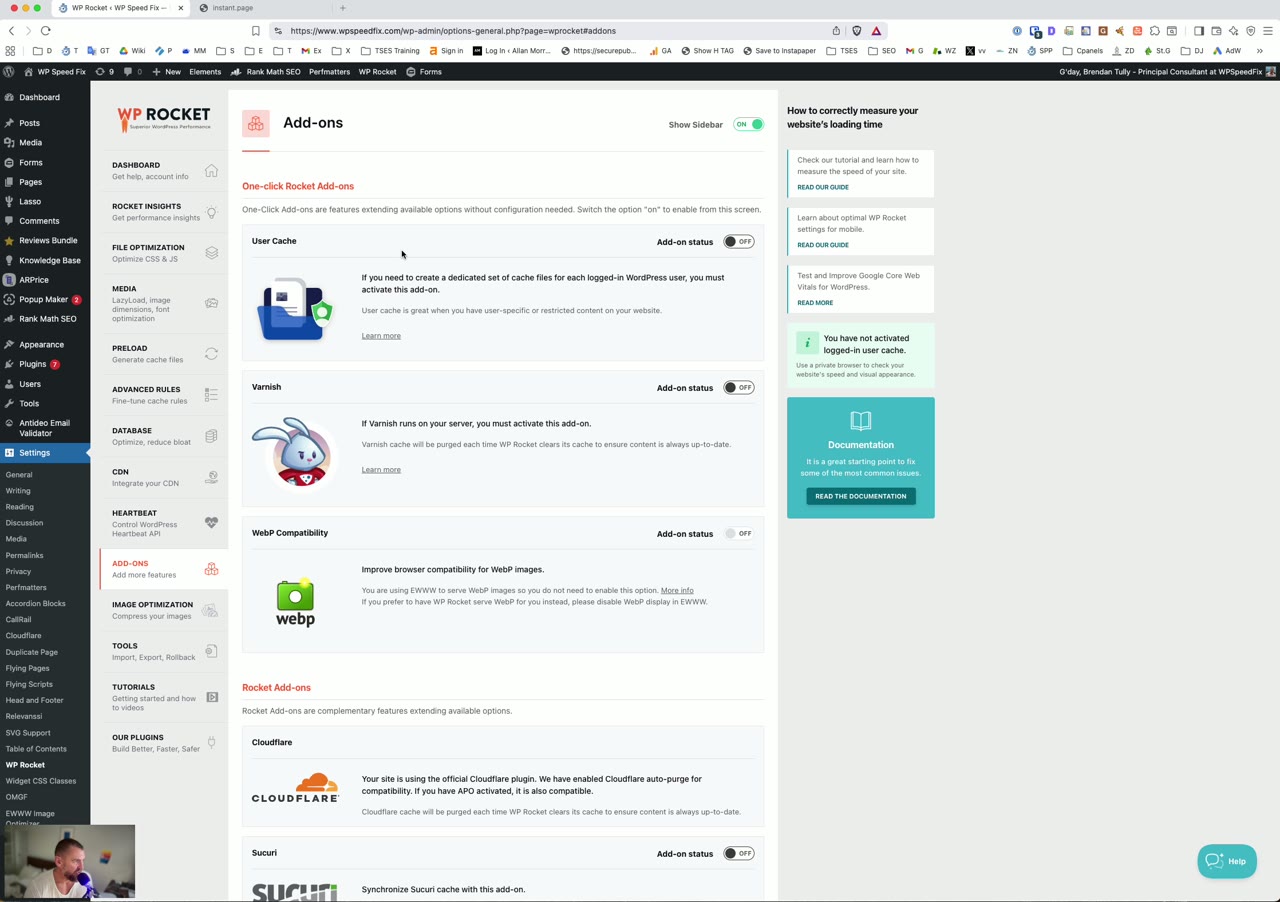
WP Rocket offers several add-ons for specific integrations:
Cloudflare: If you use Cloudflare, enable this add-on and configure it with your API credentials. It allows it to automatically purge the Cloudflare cache when your WordPress cache is cleared.
Sucuri: Similar to Cloudflare — if you use Sucuri’s firewall/CDN, enable this for automatic cache synchronization.
Varnish: If your host uses Varnish caching (not so common any more), enable this so the plugin can purge the Varnish cache alongside its own cache.
Only enable the add-ons that apply to your hosting setup. There’s no need to activate add-ons for services you don’t use.
Image Optimization
Generally our preference is to use EWWW Optimizer for image optimization as it’s a better performing plugin that WPRocket’s separate Imagify plugin.
Tools
The Tools tab provides import/export functionality and some debugging options:
Export Settings: Once you’ve dialed in your configuration, export it. This gives you a backup of your settings and lets you quickly apply the same configuration to other sites.
Import Settings: If you have a proven configuration from another site, you can import it here instead of configuring everything manually.
This tab also shows options to rollback to a previous version of WP Rocket if an update causes issues, and includes beta testing options if you want to try upcoming features.
Final Tips For WP Rocket Performance
A few parting recommendations to get the most out of WP Rocket:
- Test after every change. Don’t enable 10 settings at once. Turn them on one at a time, clear the cache, and test your site thoroughly — especially forms, menus, sliders, and any interactive elements.
- Use your browser’s DevTools console. After enabling new settings, open your site with the browser console open (F12 > Console tab). JavaScript errors will show up here and tell you exactly which script is having issues — making it easy to add the right exclusion.
- Don’t chase perfect scores. A PageSpeed score of 90 with a fully functional site is infinitely better than a score of 100 with broken forms or missing elements. Real-world user experience always trumps synthetic benchmarks.
- Clear your cache after changes. This seems obvious, but it’s the #1 support issue. After making any changes in WP Rocket, always clear the cache before testing.
If you need help optimizing your WordPress site or want us to configure WP Rocket for you, request a FREE site audit here. We’ve done this nearly 5,000 times — and we’d be happy to help with yours.